 Haru Voice Notes
Support
Record first, check readiness, then revisit what was said.
On supported devices and in supported languages, saved recordings can be transcribed and summarized on the device. Start with New recording or Import audio, then open a saved note in the library and listen to the original.
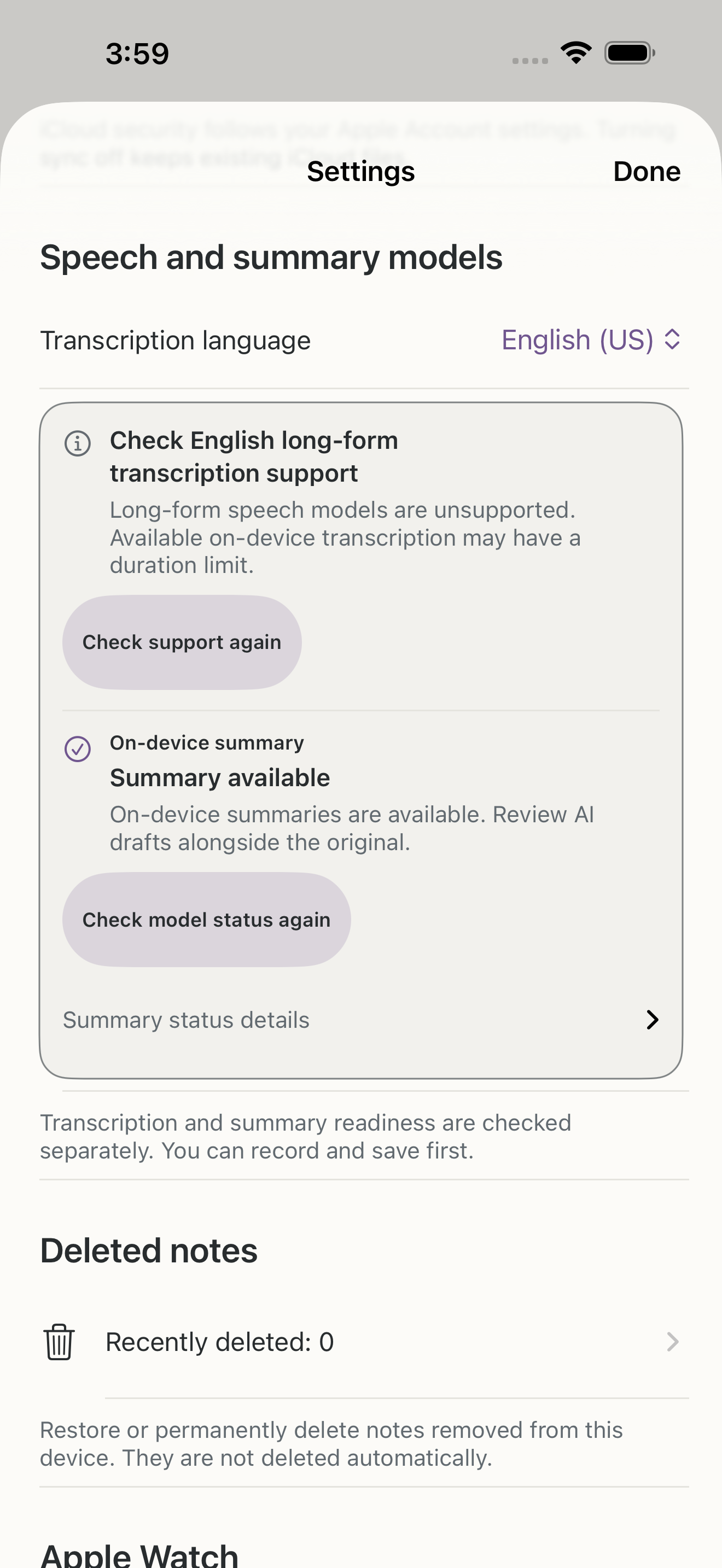
Settings shows speech and summary readiness separately. Recording and playback remain available when transcription is not ready. Prepare the required resources, retry processing, and check transcript and summary drafts against the original.
Devices, languages and model status
iPhone and iPad require iOS/iPadOS 26 or later. Optional Watch features require watchOS 26 and a paired iPhone. The interface supports Korean and English. The selected note-processing language is separate from the interface language; Settings offers Korean, English (US) and Japanese, subject to runtime support.
Transcription requires supported Apple on-device speech resources for the selected language. Summary and suggested-title drafts require compatible hardware, enabled Apple Intelligence, an installed and available Apple on-device model, and a supported locale. Transcription readiness and summary readiness are shown separately.
First use may attempt speech-resource preparation. Internet may be needed to download Apple resources; Apple Intelligence preparation follows system settings. In Settings, check the selected language and current status, refresh status, and retry speech preparation when offered. Returning to the app refreshes status. Summary-model download progress is not provided. The app preserves available audio when processing is unavailable and has no server AI fallback.
Record, save, check status, review
Choose New recording, start recording, and use pause/resume as needed. Tap Finish recording and save to save first, then attempt transcription and a summary when the required models are ready. When the recording screen closes after saving, check the note and processing status in the library.
If processing waits or fails, open Settings and check transcription and summary status separately for the selected language. Check microphone/Speech permissions, available storage and the displayed error. The older on-device speech path is limited to recordings of 60 seconds or less. Retry processing after resources are ready; recording and playback do not require an AI summary.
Open the saved note, listen to the original audio, and compare the transcript and summary draft. AI drafts can be wrong or omit details, especially after long-transcript condensation. Review freshness and draft warnings before exporting or sending. Earlier summaries remain in history; retranscription replaces the current transcript.
For save failure, check the retry/recovery state and retain the original until saving succeeds. Interrupted recordings may remain for recovery; damaged or unfinished audio cannot always be repaired.
Export, mail and earlier notes
Original-audio export and email audio attachments support M4A files only. Imported audio in other formats is not converted to M4A. Export original M4A audio, SRT/VTT subtitles from saved transcript timing, or review-selected Markdown/text. Document exports do not embed original drawing, image or audio files. Earlier writing, handwriting and images remain read-only and exportable; this version does not create or edit new writing or handwriting.
Send by email opens an editable system Mail draft or a sharing fallback. Review the recipient, subject, body and selected content. Full transcript TXT and original M4A attachments are off by default; combined attachments are limited to 20 MiB and the mail service may allow less. You choose the final send in the selected app. A system send/queue or sharing result is not proof of delivery.
Optional iCloud and Watch
iCloud Drive sync is off on a fresh install. Enabling it transfers saved note files through your Apple account. Check iCloud Drive availability, use Sync now or refresh, and refresh again after downloads if needed. Resolve conflicts by choosing keep both, the local version or the iCloud version. Turning sync off leaves existing cloud revisions. OS device backups follow separate system settings.
Keep the Watch app open while recording. Stopping queues the recording for the paired iPhone; transfer is asynchronous. The iPhone performs transcription and summary processing and can return results to Watch. Check both apps and use Check transfers again when needed. No fixed transfer time or three-hour Watch recording duration has been established or guaranteed.
Recently Deleted and independent copies
Deleting a note moves this device’s note to Recently Deleted. In Settings, open Recently Deleted to restore it or explicitly delete it permanently. There is no automatic expiry. Restore retains the note’s original identity and assets.
Permanent deletion removes the target local note assets, relevant drafts/receipts and validated app-owned per-note export caches. If safe cleanup cannot finish, the deleted note remains restorable and retryable. It does not remove iCloud revisions, Watch originals, other-device notes, files already exported/shared/mailed or backups. Manage those independent copies separately. Delete App removes local app data; Offload App may retain it. Restoring a backup can restore retained data.
After permanent deletion, a minimal local deletion marker containing the note identifier, deletion time and purge state remains to prevent old iCloud or Watch transfers from restoring the note. The marker does not retain its title or note content.
Limits and security expectations
This version does not provide translation, live transcription or summaries, denoising/trim editing, semantic AI search, or handwriting recognition. Local word search is available. On-device processing is not a promise of always-offline operation: model preparation, optional sync, sharing and backups can use networks. No corporate security certification or standard-iCloud end-to-end encryption guarantee is claimed.
Contact
Operator: Dongchan Seo
Email: eternalamour@naver.com
Include app version/build, device/OS, reproduction steps and the error message. Start with non-sensitive sample data. Do not include personal recordings or transcripts, account passwords or verification codes as default support material.
From October 5, 2026, inquiries, attachments and operator-held copies are subject to deletion without delay once their support purpose is fulfilled or they are no longer needed. Any actual legal retention obligation is handled separately under its applicable basis and period.